IntelliReach User Guide: Senders, Campaigns, Clients, Reply Tracking, and Billing
Help and Guides
IntelliReach User Guide: Senders, Campaigns, Clients, Reply Tracking, and Billing
A practical step-by-step IntelliReach guide covering senders, warm-up, campaign setup, client management, reply tracking, and invoice billing.

Practical takeaway
Use this article as a checklist before the next campaign launch so the outbound process stays consistent.
Article metadata
Updated: Aug 10, 2026
Detailed User Guide
Briefly about the service logic: you connect sender accounts, warm them up, create a campaign, launch it, monitor deliverability and replies, and store found companies and contacts in the Clients section as in an internal CRM.
Quick Start
- Connect at least 2-5 sender accounts if you plan to run regular campaigns.
- Start warming up new accounts right away.
- For at least one sender account, enable reply tracking to see real responses in a single inbox section.
- Create a campaign: start with audience and settings, then write the email texts.
- Before a large-scale launch, keep a moderate daily limit and check the deliverability block.
- If emails start landing in spam, it's better to pause the campaign, further warm up the accounts, and simplify the email texts.
1. Adding Sender Accounts
Sender account is the email inbox from which the system will send emails. In the interface, the section is called "Senders", but essentially these are simply your sender accounts.
Our recommendation for getting started: Begin with ordinary personal Gmail and Outlook accounts. Such inboxes typically have higher baseline trust from email services, so it's usually easier to achieve good deliverability at first. Later, once you understand warm-up and reputation management, you can add business Google Workspace, Microsoft 365 accounts, and addresses on your own domain.
Account type — When to use — How to connect
- Google: If you have Gmail or Google Workspace. Via OAuth: log into Google and grant access.
- Microsoft: If you have Outlook / Microsoft 365. Via OAuth: log into Microsoft and grant access.
- Custom SMTP: If you have any other email or your own SMTP server. Manually: enter SMTP account details.
Simple rule: If it's possible to connect Google or Microsoft directly, that's usually the most convenient. Use SMTP connection if your email isn't from these providers or you use your own domain.
For advanced users: If you connect business email on your own domain, authorization alone is not enough. For proper deliverability, the domain usually must have at least SPF, DKIM, DMARC, and correct MX records configured. If you run your own mail server, you typically also need PTR / reverse DNS. Without these records, emails may consistently land in spam even with good content.
How to Add a Sender Account
- Open the "Senders" section.
- Click to add a new sender account.
- Choose the provider type: Google, Microsoft, or Custom SMTP.
- Enter the sender account's email address.
- Complete the connection using the scenario below depending on the account type.
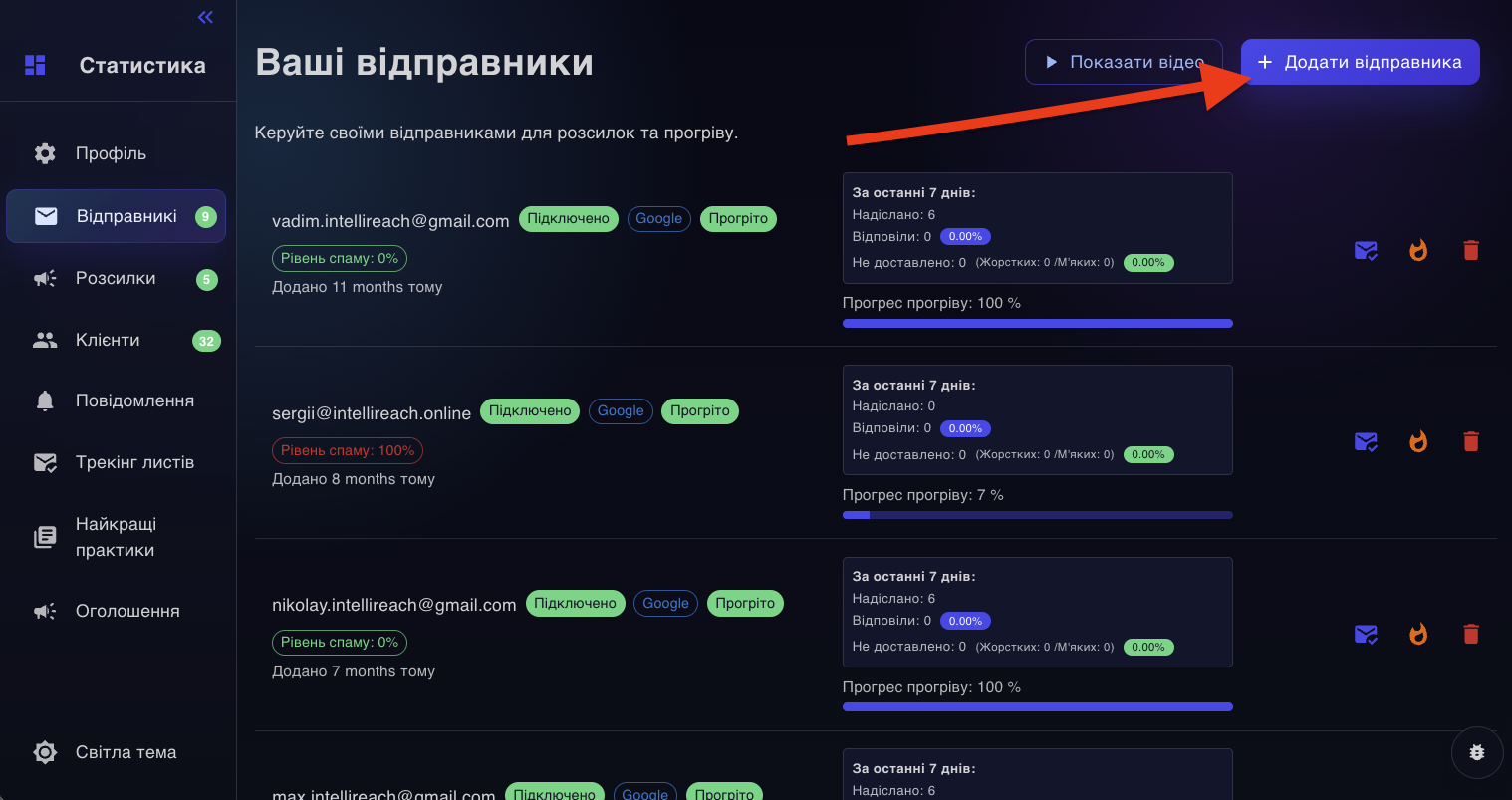
Screenshot: the "Senders" section with a list of senders and a button to add a new account.
Option 1. Google
- Select Google.
- Enter the email address of the account.
- The system will redirect you to Google.
- Log into the desired account and grant access.
- Important! Tick the checkbox allowing email sending!
- After returning to the service, make sure the account appears in the sender list.
This is the simplest way to connect Gmail. You do not need to enter your main Google account password into the service manually.
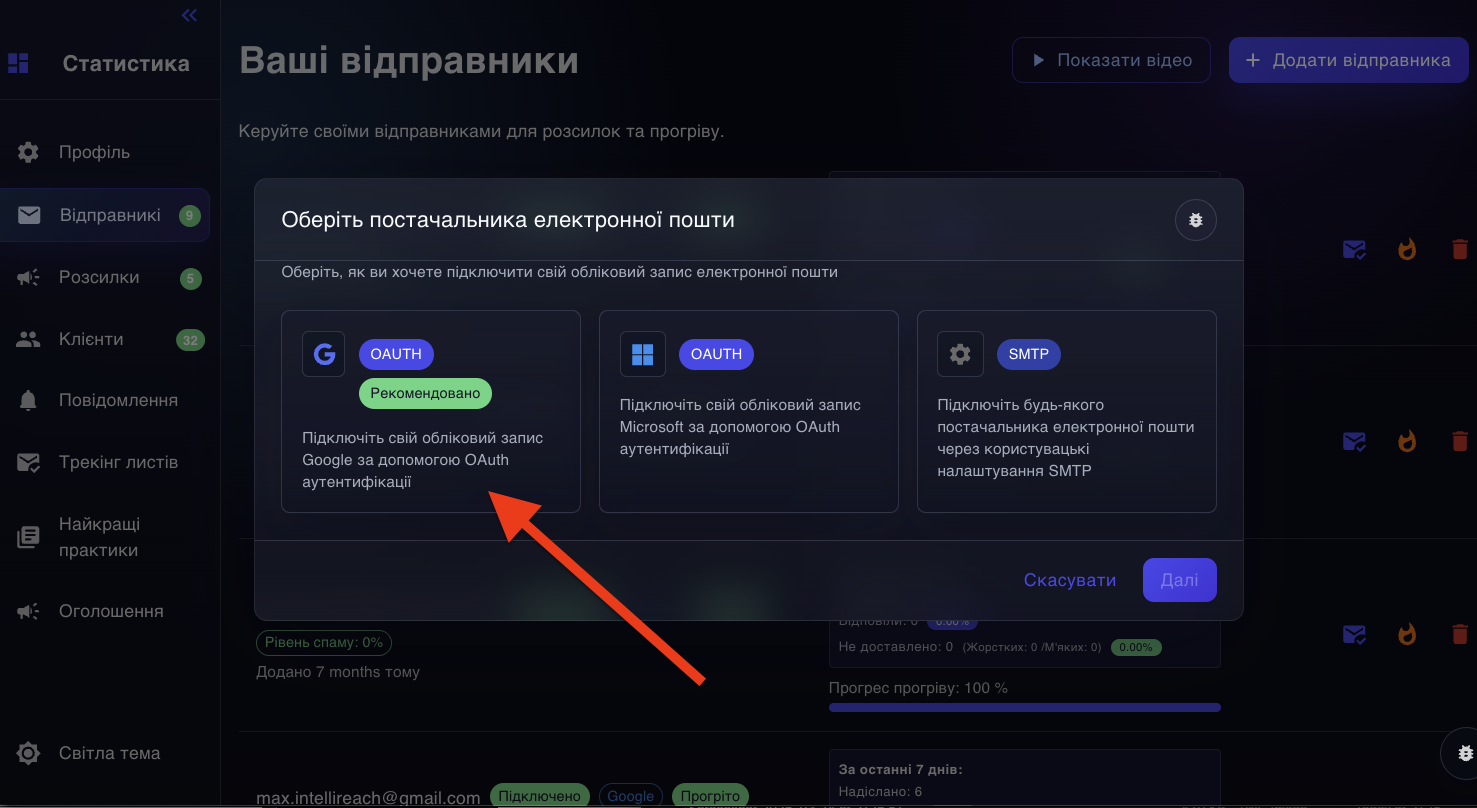
Screenshot: Google sender account connection window.
Option 2. Microsoft
- Select Microsoft.
- Enter the email address of the account.
- The system will redirect you to Microsoft.
- Log in and grant the permissions.
- After returning, check that the account is connected and appears as active.
Option 3. Custom SMTP
This option is used for non-standard emails. Here, precise SMTP settings provided by your mail provider or domain administrator are important.
Field — Meaning — What it affects
- Email: The mailbox from which emails will be sent. This is the address recipients will see.
- SMTP username: Login for accessing SMTP. Required for authentication on the sending server.
- SMTP password: Password for SMTP or a separate app password. Without it, emails will not be sent.
- SMTP host: SMTP server address, e.g.
smtp.example.com. Determines where the service connects to send mail. - SMTP port: Connection port, usually 465 or 587. Determines the type of secured connection.
- SSL/TLS: Secured connection mode. If settings are incorrect, a connection cannot be established.
If your provider uses port 465, this usually means a secured SSL/TLS connection. If using your own SMTP, always take the host, port, and security type from your provider's instructions.
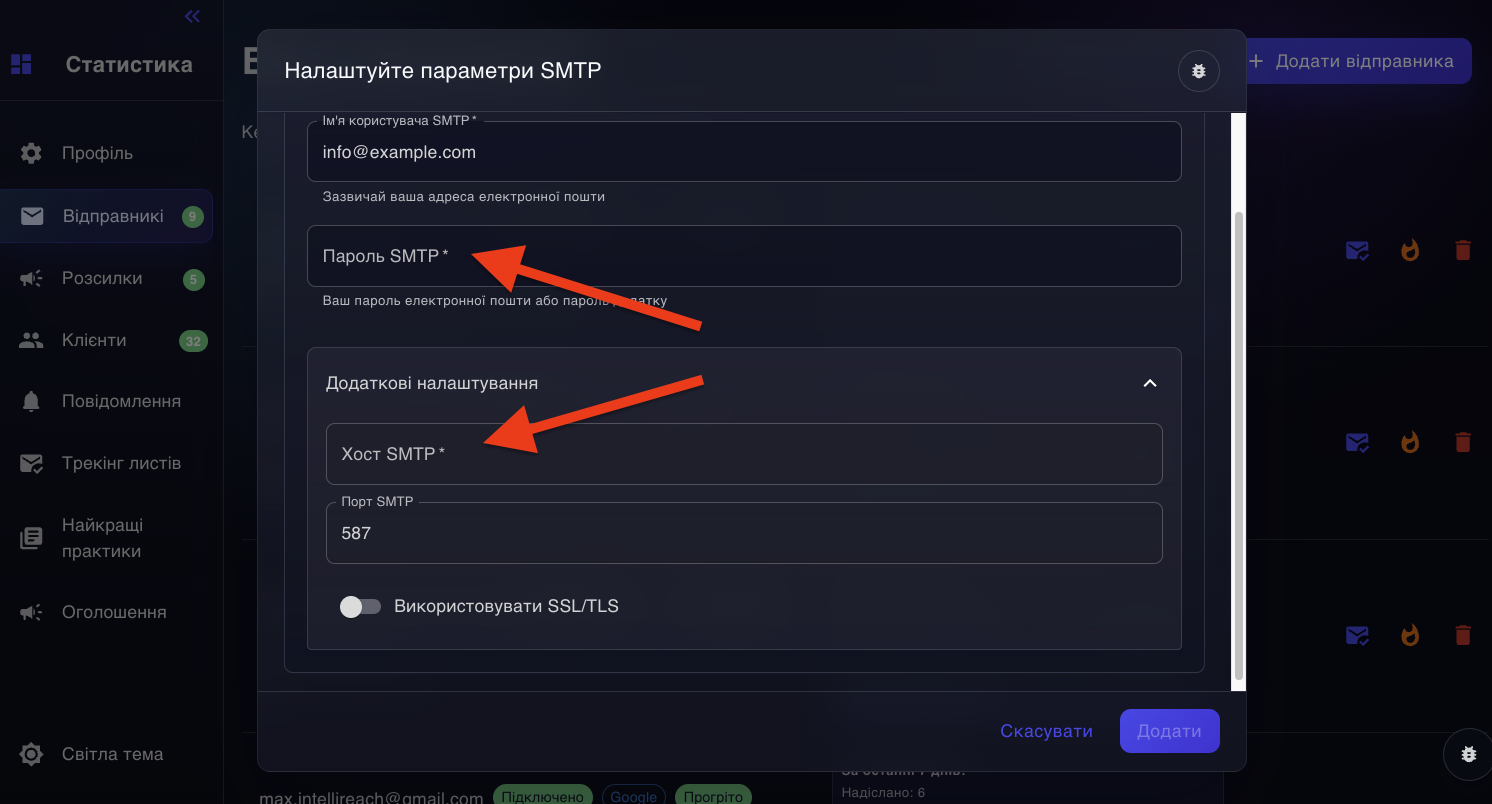
Screenshot: manual SMTP form for connecting a sender.
What to Check After Connecting
- The sender account status should be active and connected.
- If the account is new, do not start a full cold email campaign immediately: warm it up first.
- If the service shows warnings about host or port, check if SMTP and IMAP settings are mixed up.
- If the account is marked "Disabled (Spam)", IntelliReach excludes it from campaigns and starts automatic recovery warmup when possible.
2. Warming up accounts
Warming up means gradually increasing a mailbox's activity. Simply put: you don't start sending lots of emails right away, but let the mail service get used to the account's activity.
Why warming up is needed:
- reduces the risk of being marked as spam;
- decreases the chance of blocks from Google, Microsoft, and other providers;
- helps achieve better deliverability before starting real campaigns.
Practical advice: for cold outreach, it's safer to warm up accounts not for just a few days but for 3-4 weeks. This is especially important for new mailboxes, accounts after a pause, and domain mail that hasn't been actively used before.
When warming up is mandatory
- If the account is new.
- If cold emails haven’t been sent from this account before.
- If the account hasn’t been used for a long time.
- If deliverability tests show emails start going to spam in bulk.
How to start warming up
- Open the “Senders” section (Senders).
- Find the required account.
- Click to start warmup.
- Select warmup parameters.
- Confirm the start.
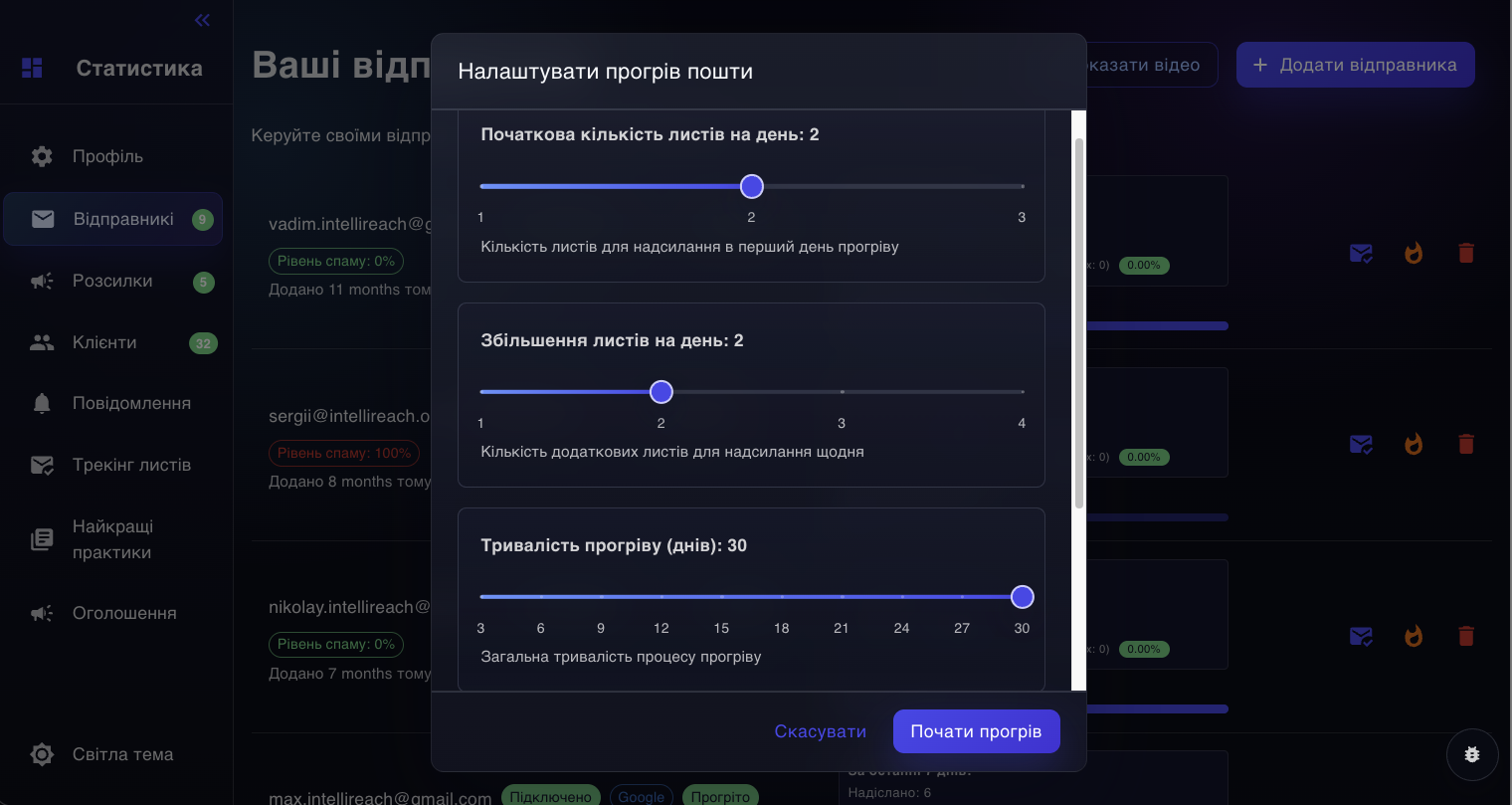
Screenshot: warmup launch dialog with warmup parameters.
What do the warmup parameters mean
Initial number of emails per day: How many emails to send on the first day of warmup. The more cautious the start, the safer it is for a new account.
Daily increase: By how many emails per day to increase the volume. Sets the speed of load increase.
Warmup duration: How many days the warmup will last. The weaker the account's reputation, the more useful a longer warmup is.
Safe start for most new accounts
- Start with 1-2 emails per day.
- Increase gradually, without sudden jumps.
- Keep the warmup for 3-4 weeks, and longer if deliverability is low.
By default, IntelliReach starts a new account with a basic short warmup template: 3 emails on the first day, then +3 emails per day, and duration of 7 days. But for actual cold emailing, this is often insufficient, so it's safer to extend the warmup to 3-4 weeks.
What account statuses can you see
- New — account is connected but not warmed up yet.
- In warmup — warmup is ongoing.
- Warmed up — account is considered warmed up and ready for use.
- Disconnected — connection lost, account needs to be reconnected.
- Disconnected (Spam) — account temporarily excluded from usage due to poor deliverability.
If a sender gets a spam-related status, IntelliReach temporarily excludes it from campaigns and attempts an automatic recovery warmup: 3 emails per day, increasing by 2 per day, for 9 days. If recovery metrics are healthy, the sender becomes available again. If automatic recovery cannot start, restart warmup manually from Senders; the account remains excluded until recovery succeeds.
When can you use the manual “Warmed up” mark
Only if you are sure that this mailbox has already been reliably warmed up before, outside the current system. If you are not sure, it's better not to skip the warmup.
3. Creating a Campaign
The current IntelliReach campaign editor is organized into four consecutive tabs: Audience, Advanced mode, Settings, and Email. First, IntelliReach needs to understand who you want to reach and what you offer. You then review the search strategy, configure delivery, and build the email sequence.
Important: creating and starting a campaign are separate actions. “Create Campaign” saves the prepared campaign. You start it later from the campaign list after a final review.
How the editor works
- Audience: choose the audience source and prepare the search brief.
- Advanced mode: manually refine the audience, geography, filters, and search channels when needed.
- Settings: exclude previously processed companies, select senders, and set delivery days and hours.
- Email: create the initial email and up to two follow-ups in the same thread.

The Audience tab before the brief is completed: AI intake, audience source, and Intent Summary.
Step 1. Choose the audience source
The Audience tab offers two distinct workflows:
- Find new companies — IntelliReach builds a strategy and discovers a new audience.
- Email existing clients — the campaign sends to companies already stored in Clients.
For new-company discovery, you use the AI planner and Advanced mode. For an existing CRM audience, you select client types and then configure delivery and email content.
Option A. Find new companies
The AI conversation is the primary way to create the search brief. In plain language, describe the companies you need, your offer, the target country or cities, important exclusions, and any preferred sources or business model.
Example: “Find logistics companies across Ukraine that could benefit from automated request processing. Require a website and exclude companies from our previous logistics campaign.”
The AI asks only for information that is still missing. You can answer in your own words or use the quick answer chips. When the brief is complete, the editor displays “Search strategy is ready.”
Review the Intent Summary and automatic strategy
A completed brief has three layers:
- Your request — who you asked IntelliReach to find and what you offer.
- Intent Summary — how the system interpreted the audience, geography, search mode, and coverage.
- Automatic strategy — the actual sources, filters, and discovery approach that will be used.
Review the category, geography, sources, and exclusions. Continue the AI conversation if anything is inaccurate, or open Advanced mode for direct control.
The ready state also shows the actual search channels and a Planner recap. Review any notices or warnings before creating the campaign; while the brief still needs clarification, a discovery campaign cannot be created.

A completed AI brief: interpreted intent, actual search channels, and Planner recap.
After you manually edit the search draft, AI intake closes and the Advanced mode fields become the source of truth.
Step 2. Refine Advanced mode settings
Use Advanced mode to inspect or change:
- a custom target or business category, subcategories, and exact business types;
- country and coverage: countrywide or selected cities;
- business model: online, offline/local, or hybrid;
- website and social presence;
- company size and query language;
- Web and Maps overrides: automatic, forced on, or forced off;
- filter strictness and the offer summary.
A custom target and business taxonomy are alternative ways to define the audience. Choosing one clears conflicting values from the other.
- Broad — more possible companies, with a higher risk of weak matches.
- Balanced — the standard compromise between volume and precision.
- Precise — strict filtering that may reject some borderline results.
Google Maps is available only when the current plan allows it. The editor explains when Maps access is unavailable.

Advanced mode provides precise manual control over the audience and strategy.
Option B. Email existing clients
Choose this workflow when the audience is already stored in the internal CRM. AI intake and Advanced mode are not used. Select at least one client type: Prospect, Hot lead, Client, or Rejected.
Unsubscribe status is handled by a separate safety mechanism and is not a client type in this selector.

The CRM workflow selects existing client types without AI discovery.
Step 3. Configure exclusions, senders, and schedule
- Campaigns to exclude: choose previous campaigns so their companies are not included in the new search.
- Excluded client types: exclude Client or Rejected when appropriate. Unsubscribed recipients are blocked separately.
- Senders: open the sender dialog and choose from available connected accounts.
- Delivery days: select at least one day of the week.
- Start and end time: the end time must be later than the start time.
When repeating discovery in the same country and category, history exclusion prevents IntelliReach from processing the same companies again.
The sender selector opens in a separate dialog. Tick the available connected and prepared accounts, check the selected count, then click Save; click Cancel to discard changes. If no suitable account is available, connect and warm up a sender first.

The Settings tab: history exclusions, sender selection, and delivery schedule.
Step 4. Build the email sequence
Each card in the sequence builder represents one linked email. Step 1 starts the conversation and is the only step where the subject is edited. Steps 2–3 are follow-ups: each has a delay after the previous step and a body, inherits the subject, and continues in the same email thread.
“Add follow-up” appears below the last step. A sequence can contain up to three emails. Each step supports a style check, spintax preview, and AI improvement. AI produces one new draft that you can regenerate, copy, or use as a replacement; every generation costs 30 credits.
When reply tracking detects a real recipient reply, pending follow-ups for that recipient stop. Automatic replies such as Out of Office do not end the sequence.

The Email tab: initial step, AI tools, and the Add follow-up action.

A follow-up step: delay after the previous email, inherited subject, and per-step quality tools.
What IntelliReach validates before creation
- campaign name;
- audience, country, and geography for discovery campaigns;
- search brief readiness;
- at least one client type for the CRM workflow;
- the initial subject and every step body;
- valid follow-up delays;
- delivery days and time range;
- balanced spintax braces.
If validation fails, the editor opens the relevant tab and points to the field that needs attention.
Create and start the campaign
- Click “Create Campaign” or “Update Campaign” to save the configuration.
- Return to the campaign list and review the status, campaign type, and audience summary.
- Click “Start Campaign” only after the final review.
- After launch, monitor search progress and sending progress separately.
Common mistakes before launch
- The strategy still needs clarification, but the user has already moved to Email.
- The category is too broad and filter strictness was not reviewed.
- Previous campaigns were not selected for exclusion during a repeat search.
- No client type was selected for the CRM workflow.
- No available, prepared sender accounts were selected.
- The end time is earlier than the start time.
- A follow-up repeats the initial email instead of adding useful context.
4. Launching a Campaign and Monitoring Results
How to Launch a Campaign
- Open the campaigns list.
- Find the campaign you need.
- Click launch.
- If the system shows a warning about un-warmed sender accounts, it is best to stop and resolve the warming issue first.
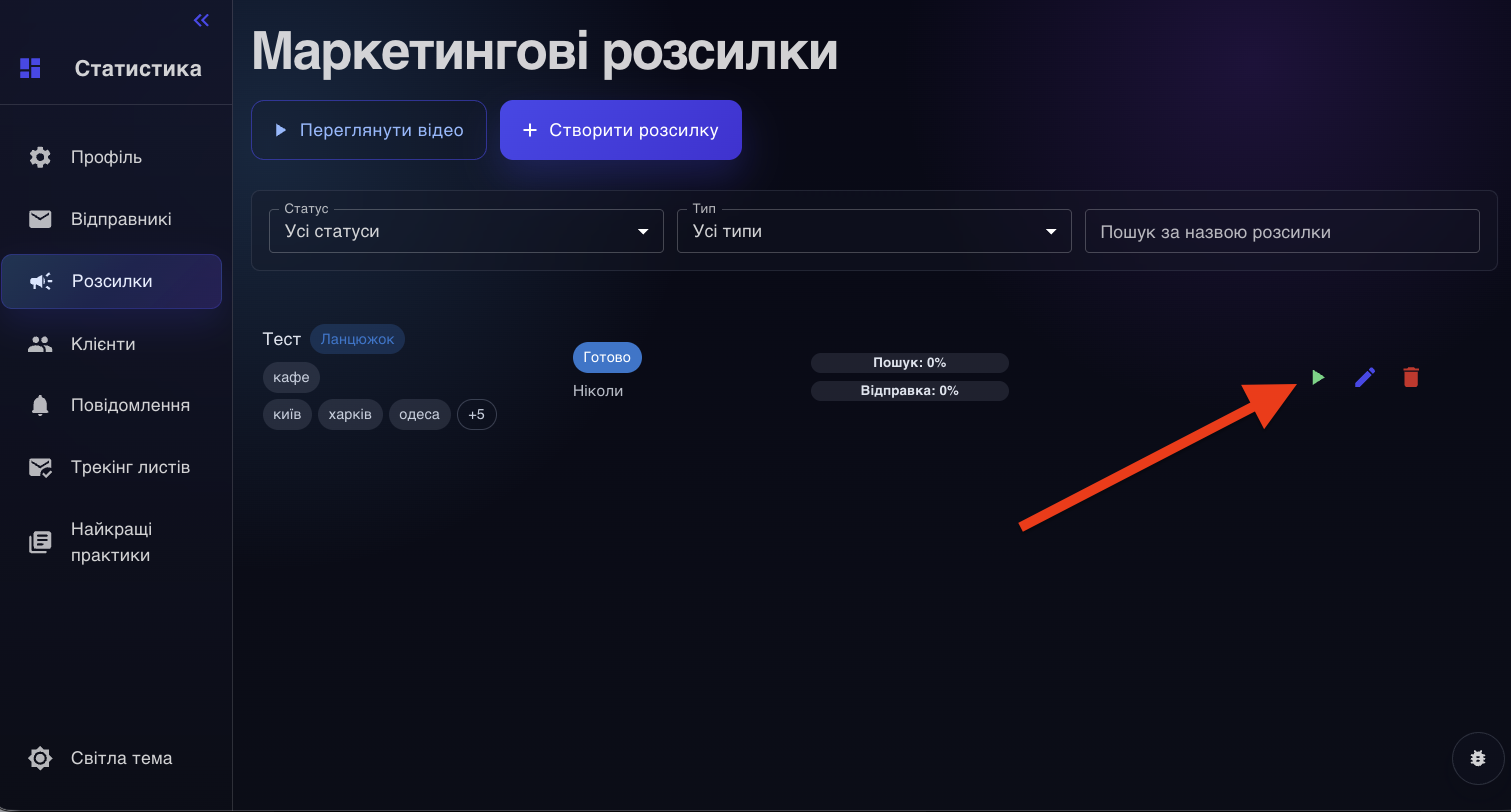
Screenshot: campaign list with statuses and launch action.
Launching cold outreach without warmed-up accounts is risky. The service explicitly warns that this can affect deliverability and may even lead to blocks.
Where to View Results
The main data is viewed in two places:
- in the “Campaigns” list (Campaigns) — for quick state monitoring;
- in the details of a specific campaign — for deeper analysis.
What You See in the “Campaigns” List
- campaign status: ready, launched, stopped, completed, paused, etc.;
- company search progress;
- email sending progress;
- current deliverability snapshot, if there is already data for the campaign;
- text quality marks, if a check was run.
What to Look For in Campaign Details
- Total companies found — how many companies were found.
- Companies without email — how many companies were found without an email address.
- Total email addresses found — how many email addresses were found.
- Invalid email addresses — how many addresses were rejected as invalid.
- Total emails sent — how many emails were actually sent.
- Reply rate — the share of replies. Especially useful if sender accounts have reply tracking enabled.
- Unsubscribed (Unsubscribed) — how many contacts were excluded from further communication.
- Daily activity — daily activity for the campaign.
How to Monitor Deliverability
For this, the campaign has a “Deliverability Test” (Deliverability Test) block. It shows where test emails typically end up:
- Inbox (Inbox) — emails reach inbox normally.
- Spam — emails go to spam, intervention required.
- Unknown (Unknown) — there is not yet a precise result or placement is undefined.
What’s Especially Important to Watch
- the overall inbox rate (Inbox rate) for the campaign;
- the overall spam rate (Spam rate) for the campaign;
- breakdown by individual sender accounts;
- trend over time: has it gotten better or worse after launch.
If Deliverability Is Poor
- Pause or stop the campaign.
- Give sender accounts at least another week of warming up.
- Lower the daily limit per sender account.
- Simplify your texts: fewer links, less “salesy” phrasing, less formatting.
- Check the email subject and first sentence: these often hurt deliverability the most.
- After this, monitor deliverability metrics again and only then consider scaling up.
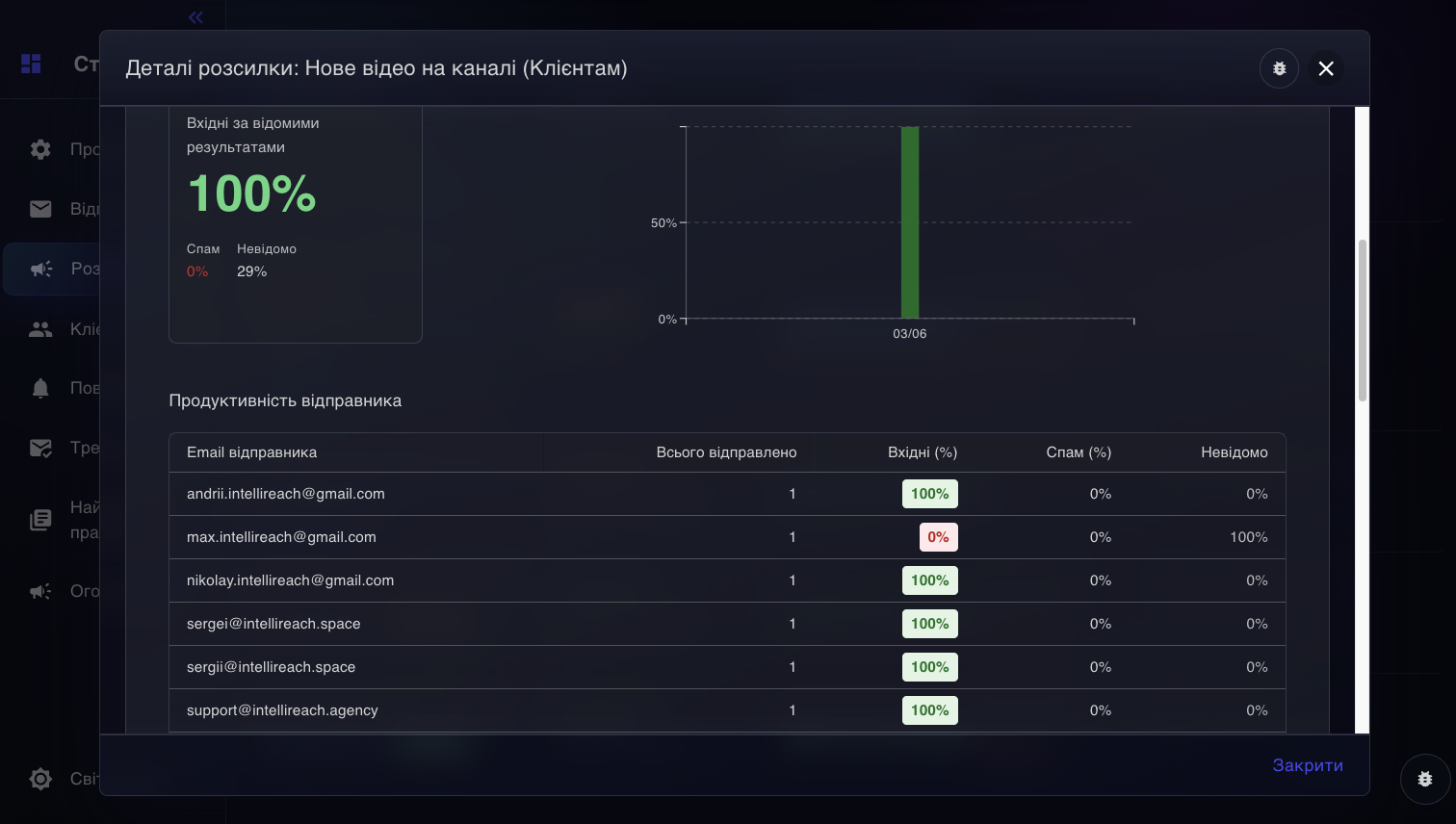
Screenshot: deliverability test block in campaign details.
How to Know When It's Time to Take Action
- The spam rate (Spam rate) increases noticeably.
- The inbox rate (Inbox rate) decreases after the campaign starts.
- Sender accounts start to get a bad reputation or are disabled due to spam.
- Few replies, while the subject and text look too promotional or are hard to read.
5. The "Clients" Section
The "Clients" (Clients) section is the internal client database (CRM) within IntelliOutreach. Here you can store companies you are already working with or want to work with: those found by the system, imported manually, or added from your inbox.
Why you need the "Clients" section
- to keep a database of companies and contacts in one place;
- to categorize your database by status;
- to see communication history;
- to launch mailings using your accumulated client database (CRM);
- to add notes, tags, and change statuses as you work.
Main statuses in the client database
- Prospect — the company is potentially interesting.
- Hot Lead — a warm lead with increased interest.
- Client — an active client.
- Rejected — the company is not suitable or no longer relevant.
The system can also use additional custom statuses if allowed by your plan and settings.
How to use the "Clients" section
- Open the "Clients" (Clients) section.
- Use the search by email, company, or website to quickly find the needed profile.
- Open the company’s profile and update the status, tags, and notes.
- View the history of sent messages and replies for the company.
- If necessary, send an individual email directly from the profile.
What you can do in the client table
- search and filter companies;
- sort the list;
- show and hide columns;
- select multiple records at once;
- bulk change statuses;
- bulk delete records;
- delete all records from the current filtered view, if needed.
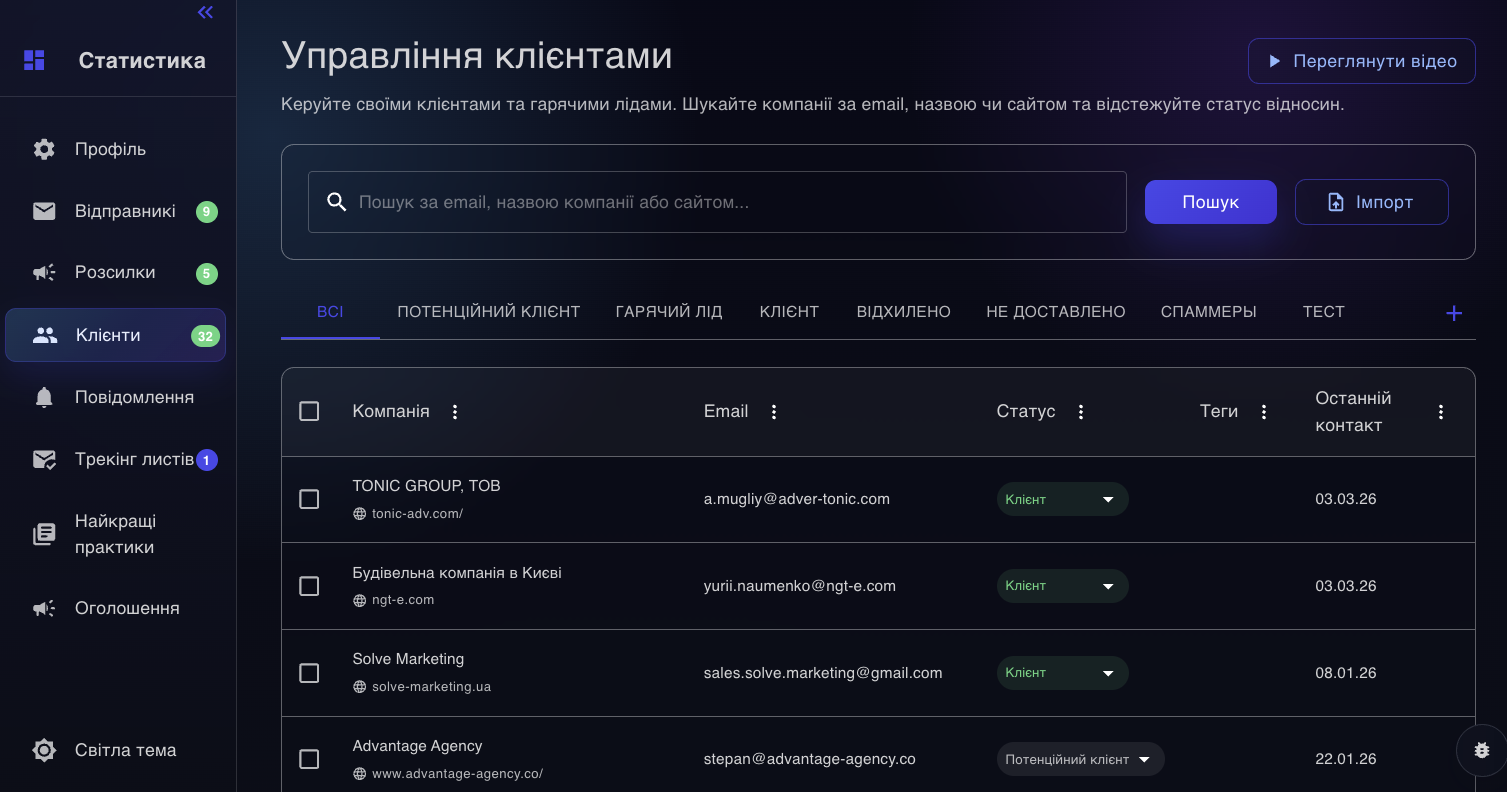
Screenshot: client table with search, filters, and bulk actions.
Importing a database into the "Clients" section
You can import a database from .xlsx, .xls, or .csv files.
- Open the "Clients" section.
- Select import.
- Upload the file.
- Specify which status to assign to the imported companies.
- Add tags if needed.
- Check the result after importing.
According to the current interface logic, import does not replace company search, but simply adds ready data to the internal client database (CRM). The service also checks email addresses during import.
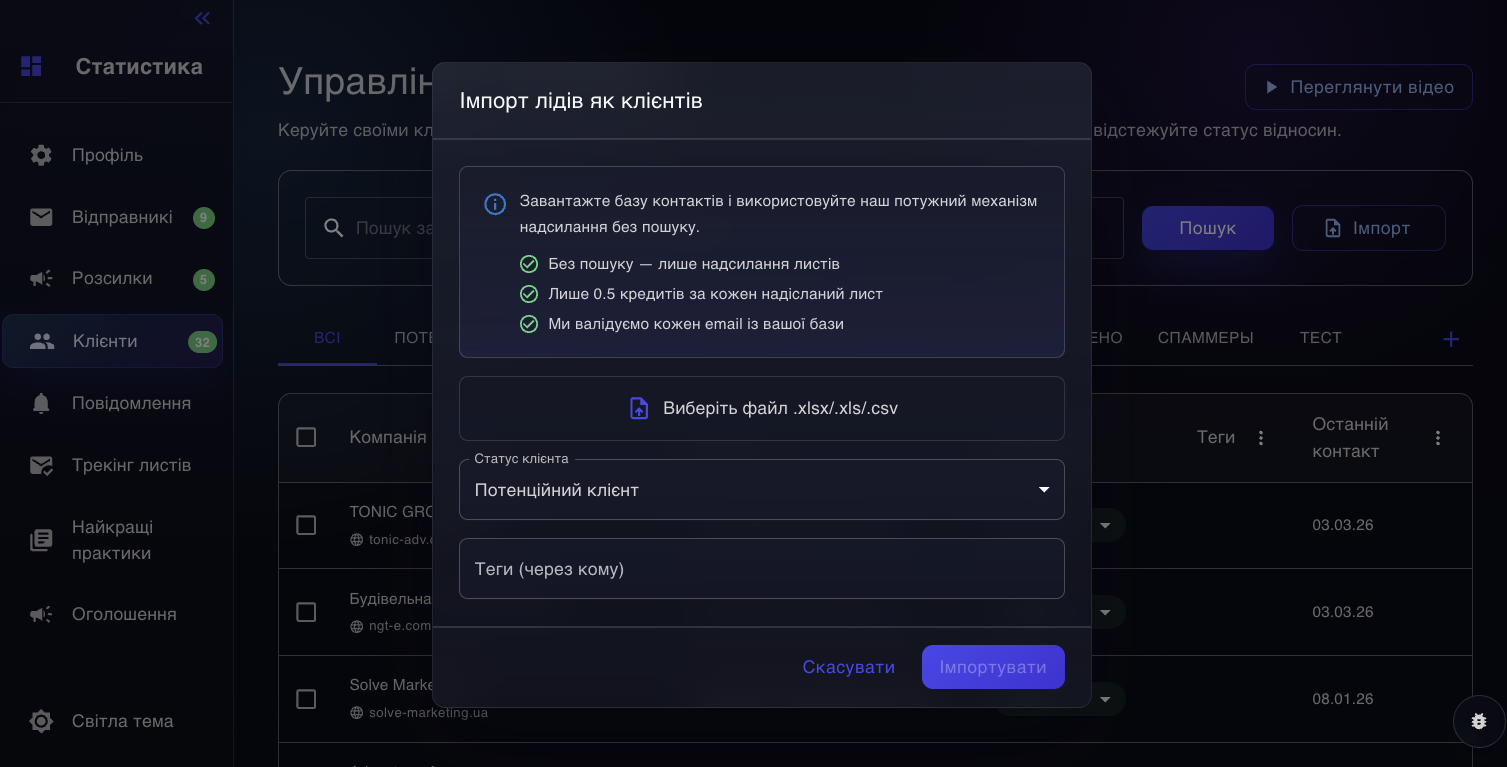
Screenshot: client database import from a file.
How to fill out a company profile
You can keep the following information in a company profile:
- company name;
- website;
- email address and phone numbers;
- social network links;
- location;
- notes;
- tags;
- the history of sent emails and replies.
Why this is convenient
- You don’t lose track of a company after the first mailing.
- You can quickly move a lead to another status.
- It’s convenient to separate cold contacts, warm leads, and actual clients.
- You can launch separate campaigns using the client database (CRM), not only the new search results.
6. The "Reply Tracking" Section
Reply tracking allows the service not only to send emails but also to see incoming replies from your mailboxes. Thanks to this, replies are gathered in one place, and subsequent email sequences behave correctly.
The main benefit of tracking: when someone replies, you see it in the unified inbox section, can respond quickly, link the conversation to the client's card, and avoid unnecessary follow-up emails.
What reply tracking offers
- a unified inbox section for all connected sender accounts;
- automatic collection of incoming replies;
- pausing the remaining steps in a sequence after a real recipient reply;
- better reply metrics and some analytics on responses;
- the ability to reply directly from the interface.
How to enable tracking
- Open the “Senders” section (Senders).
- Find the desired sender account.
- Enable reply tracking for it.
- Walk through the connection scenario depending on account type.
- If asked by the system, be sure to test the connection before saving.
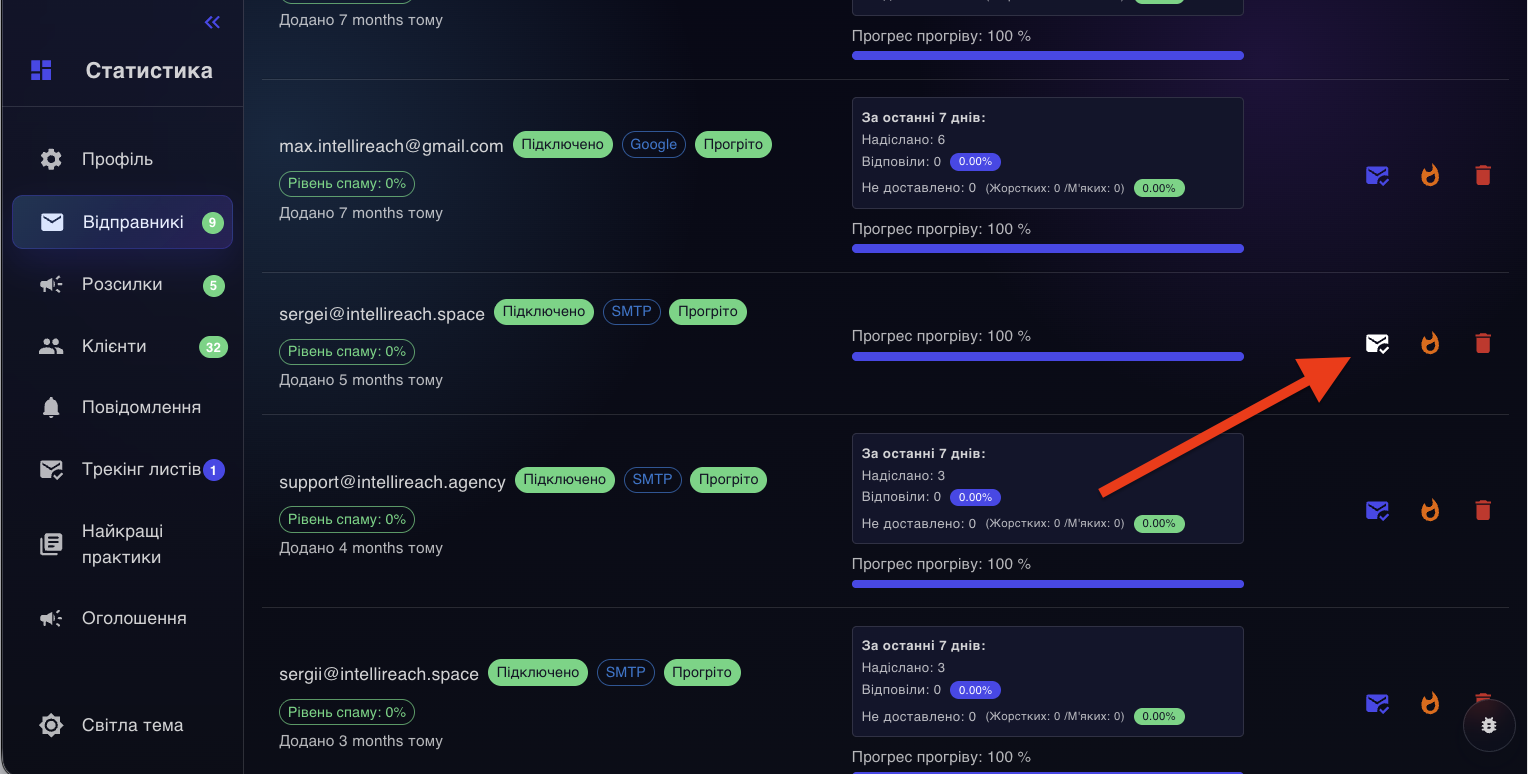
Screenshot: enabling reply tracking and IMAP setup.
How connection differs for various account types
Account Type: Google OAuth
- How tracking is connected: An IMAP dialog opens, usually requiring a Google App Password
- Important note: For Gmail, you usually must enable two-factor protection in Google and generate a separate app password
Account Type: Microsoft OAuth
- How tracking is connected: The system guides you through a repeated OAuth connection for IMAP access
- Important note: Typically, you do not need to enter a separate IMAP password; authorization goes through OAuth2 / XOAUTH2
Account Type: Custom SMTP
- How tracking is connected: You need to manually specify the IMAP host, IMAP port, security type, and password
- Important note: After entering details, you must click "Test Connection"; you cannot save unless the test is successful
What the IMAP connection fields mean
IMAP Host: Incoming mail server address, for example, imap.gmail.com. The service uses this to read incoming replies.
IMAP Port: The port of the incoming mail server. Determines connection type and whether the service can connect.
Security / SSL: Secure IMAP connection mode. If set incorrectly, tracking will not work.
Password / app password: Password for reading mail or a separate app password. Required for authorization to incoming mail.
Do not confuse SMTP and IMAP. SMTP is for sending, IMAP is for reading incoming emails and replies. If you mix up the host or port, tracking will not connect.
Where to view replies after connecting
After enabling tracking, replies appear in a unified inbox section, which usually features:
- tabs like Open, Archived, and Snoozed;
- search by conversation;
- manual inbox refresh;
- replying directly from the interface;
- connecting conversations to a company card in the “Clients” section;
- archive, snooze, and delete dialogues.
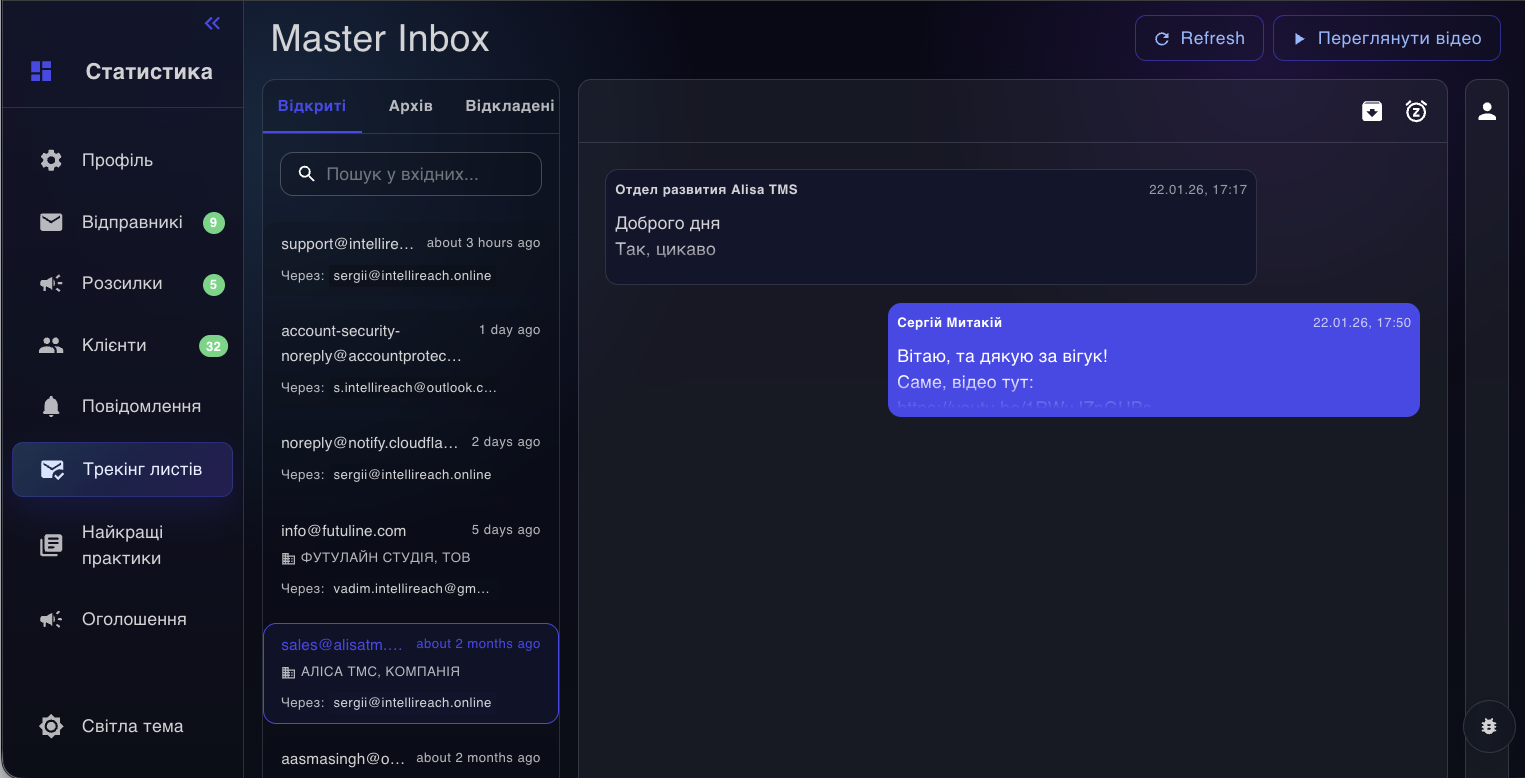
Screenshot: unified inbox with replies after enabling reply tracking.
How tracking works with sequences
- if someone replies, further sequence emails to them are stopped;
- if you reply yourself from the inbox section, it is treated as a normal reply in the same thread;
- subsequent emails from step 2 and beyond are sent in the same conversation thread;
- auto-replies like out-of-office are not always counted as a genuine reply.
Limitations and practical notes
- In the current interface, the free plan (free) limits reply tracking to one sender account at a time.
- For Gmail, tracking often depends on properly creating an app password.
- For non-standard mail, a successful connection test is necessary before saving.
- If tracking is not enabled, you can still send emails, but you will have less useful reply analytics within the system.
7. Subscription and Invoice Billing
If paying for a plan by bank card is inconvenient for you, in the Profile section there is a separate Invoice Billing block for non-cash payment via invoice. This scenario suits sole proprietors, LLCs, and other legal entities that require an official invoice for a plan or additional credits.
According to the current product logic, you save your company details once, then create an invoice, and after the administrator confirms payment, your subscription or credits are activated automatically.
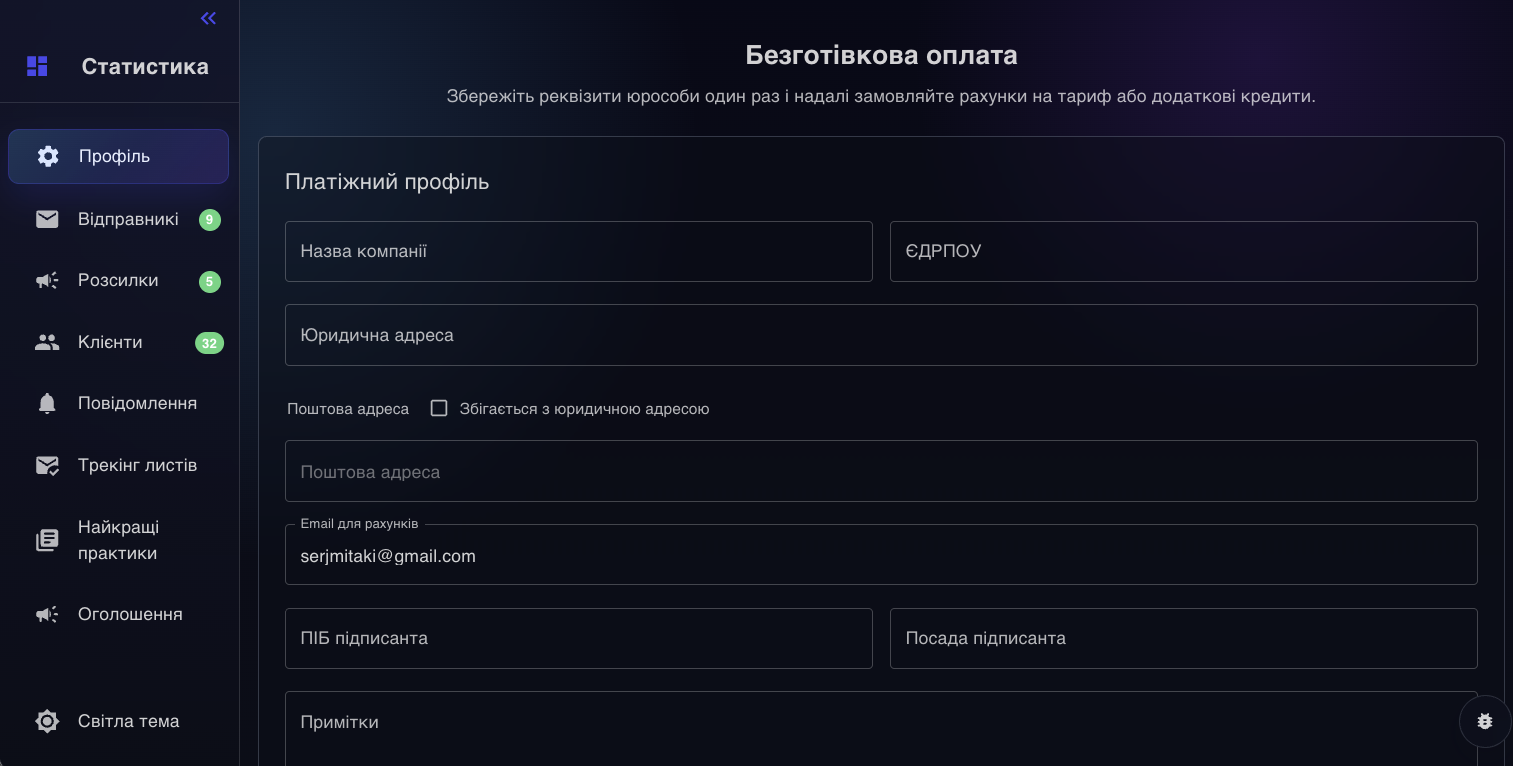
Screenshot: Invoice Billing section in profile for non-cash payments.
When to use invoice billing
- If payment should be made from the company or sole proprietor, not a personal card.
- If you need an official invoice for subscription, credits, or a mixed order.
- If your accounting department needs company details, email for documents, and invoice history all in one place.
Which fields must be filled out
Company name
The legal name of the company or sole proprietor
Will be included in the invoice and payment documents
EDRPOU
EDRPOU code or TIN/registration code
Required for proper invoice processing
Legal address
The legal address of the company
Used in the billing profile and documents
Postal address
Postal address, if different from the legal address
Required for details and document circulation
Billing email
The email address to receive invoices
The system will send PDF invoices and related documents here
Signer name / Signer title
Full name and job title of the signer
Used for legal entity documents
Notes
Additional comments for the invoice
Useful for internal remarks or accounting requests
Step-by-step instructions
- Open the Profile section.
- Scroll down to the Invoice Billing block.
- Fill in the company details: name, EDRPOU, legal address, billing email, signer and postal address if needed.
- If the postal address matches the legal address, enable the Same as legal address option.
- Click Save billing profile to save your details once.
- In the Create invoice block select what you want to pay for: plan, extra credits, or both at once.
- If you need a plan, select one in the Subscription plan field.
- If you need only credits or extra credits, specify the amount in the Extra credits field.
- Click Create invoice.
- Wait for a message with your invoice to your Billing email and pay it via bank transfer.
- After payment, send the payment confirmation to support@intellireach.agency.
- Then, within a day after payment verification, your plan or credits will be activated.
What happens after payment: Once you send the payment confirmation to support@intellireach.agency, the team will verify the payment, and within the day your plan will be activated and credits granted. If the invoice included the plan, the system will switch your subscription to monthly invoicing mode, so in the future new invoices will arrive automatically. At the end of the month, a report of work completed will also be sent automatically.
What you can pay for by invoice
- Only the subscription plan.
- Only additional credits.
- Mixed invoice: plan plus extra credits in one document.
How credits work: In this logic, 1 credit = 1 found lead + one email sent to them. That is, a credit is spent not just for the search or just for sending separately, but for the complete basic step: the system finds a lead and sends an email.
Where to view status and documents
Below on the same page there is a section for payment document history. There you can view created invoices, payment deadlines, download the PDF invoice, and, if available, related acts.
If your subscription already works via bank transfer, your profile will also show the fields Next invoice date and Next payment due date.
In the current process, payment confirmation is still performed manually by an administrator. If the invoice is not paid on time, then after a grace period of 5 days the paid subscription may revert to the free plan.
Practical Deliverability Tips
- Do not launch a cold campaign from un-warmed accounts.
- Do not set a high daily limit "just in case."
- Write simple emails without unnecessary links and heavy formatting.
- Do not make the subject line too promotional.
- Use spintax moderately, not aggressively.
- Monitor the deliverability test (Deliverability Test) after campaign launch.
- If tests are poor, pause the campaign, warm up accounts for another week, and improve your texts.
- Enable reply tracking on at least some sender accounts to see the real response picture.
A simple rule: if you are in doubt between "making the email prettier" and "making the email simpler," the simpler, calmer, and more natural option usually wins for cold outreach.
Ready to apply this in a live campaign?
Use these patterns inside IntelliReach to launch safer outbound systems, improve reply quality and keep workflows consistent.